What Is a Browser Extension? A Plain-English Guide
Learn what a browser extension is, how extensions work, what they can do, and how to choose safe add-ons for Chrome, Firefox, Edge, and Safari.
A browser extension is a small piece of software that adds a specific feature to your web browser. It might block ads, save passwords, translate a page, boost the volume in a tab, keep your screen awake, or add a tiny button next to the address bar that does one useful thing.
That is the simple version. The more interesting version is this: a browser extension is a way to customize the web without waiting for every website, browser, or operating system to build the feature you want.
The browser is already the place where you read, watch, work, shop, write, listen, research, and fill out forms. Extensions live right there, close enough to help at the exact moment you need them.
The Short Answer
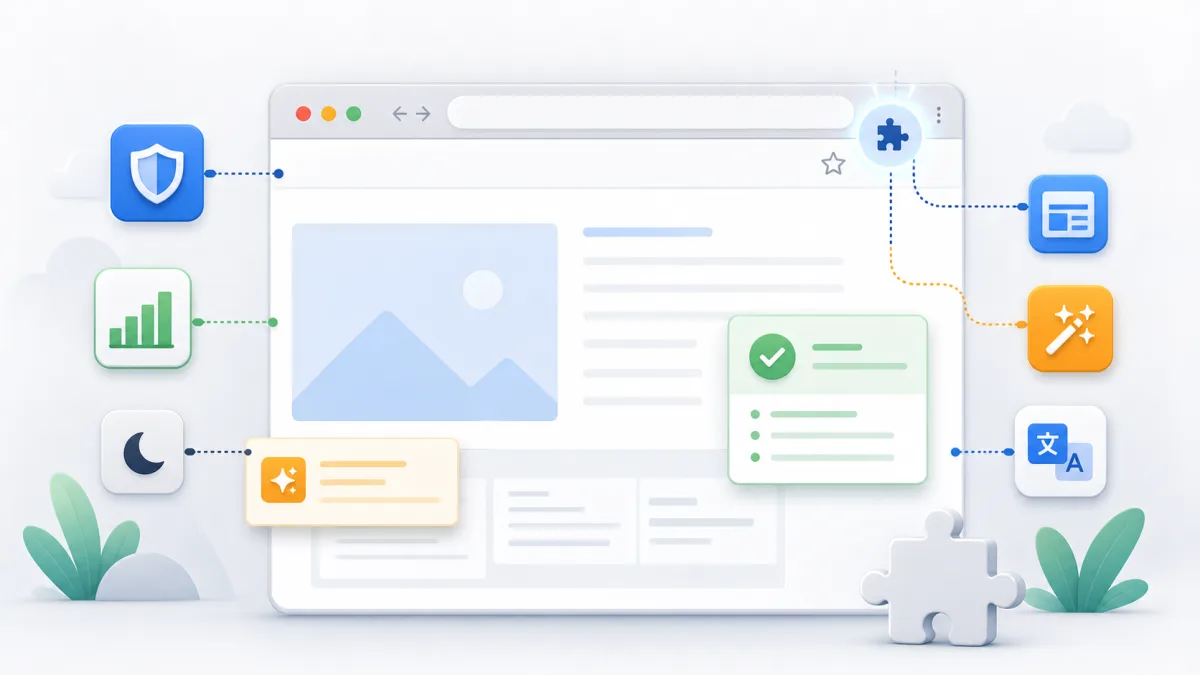
A browser extension is an add-on for your browser. You install it into Chrome, Firefox, Edge, Safari, or another browser, and it adds a focused capability that the browser does not include by default.
Most good extensions are narrow. They do not try to become a whole app. They solve one sharp problem.
- A password manager fills logins.
- An ad blocker filters page requests.
- A grammar tool checks what you type.
- A dark mode extension changes page styling.
- A volume booster increases quiet tab audio.
- A page marker lets you draw, highlight, or annotate on top of a page.
- A keep-awake extension stops your screen from sleeping during a task.
That smallness is the point. An extension works best when it feels like the browser quietly learned a new trick.
How Browser Extensions Actually Work
Most modern extensions are built with the same basic ingredients as websites: HTML, CSS, and JavaScript. The difference is that an extension can use special browser APIs that ordinary web pages cannot use.
Think of an extension as having a few possible parts:
- A toolbar popup: The little panel that opens when you click the extension icon.
- A content script: Code that can run on web pages, usually to read, adjust, hide, annotate, or enhance page content.
- A background script or service worker: Code that handles longer-running browser events, such as tab changes, alarms, downloads, or messages from the popup.
- A manifest file: A small configuration file that tells the browser what the extension is, what files it uses, and which permissions it needs.
- Extension storage: A place to remember your settings, such as a preferred volume level or a list of blocked sites.
The manifest is especially important. It is the extension's ID card. It names the extension, lists its icons, declares its permissions, and tells the browser where each part of the extension lives.
What Can a Browser Extension Do?
Extensions can be surprisingly powerful because they sit between you and the pages you use. They can make the browser more personal, more productive, or more protective.
Some common jobs:
- Change pages: Hide distractions, switch sites into dark mode, simplify articles, or add reading tools.
- Add tools: Create screenshots, convert units, take notes, generate QR codes, inspect SEO tags, or automate repeated clicks.
- Protect privacy: Block trackers, warn about suspicious pages, enforce HTTPS, or isolate risky scripts.
- Improve writing: Check spelling, suggest rewrites, translate selected text, or expand snippets.
- Manage accounts: Fill passwords, generate secure logins, or handle two-factor codes.
- Improve media: Boost volume, tune bass, control playback speed, or add shortcuts.
- Support developers: Inspect frameworks, audit accessibility, debug network behavior, or test responsive layouts.
This is why extensions became so popular. A browser by itself has to be general. An extension can be specific.
Extension, Add-On, Plug-In, App: What Is the Difference?
People use these words loosely, so the overlap can be confusing.
| Term | What people usually mean today |
|---|---|
| Browser extension | A small browser add-on that adds or changes a browser feature |
| Add-on | A broad word for browser extras, especially common in Firefox |
| Plug-in | An older term often tied to external runtimes like Flash, Java, or Silverlight |
| Browser app | A more standalone experience that runs in or through the browser |
| Bookmarklet | A saved bookmark that runs a small script when clicked |
In everyday conversation, "extension" and "add-on" often mean the same thing. "Plug-in" is different historically. Old plug-ins helped browsers run content they could not handle alone. Modern extensions usually customize the browser and web pages through browser-managed APIs.
Where Do You Get Browser Extensions?
The safest starting point is your browser's official extension store:
- Chrome Web Store for Chrome and many Chromium-based browsers
- Microsoft Edge Add-ons for Edge
- Firefox Add-ons for Firefox
- App Store or Safari Extensions for Safari
You may also see extensions distributed directly from a developer's website. That is not always bad, but it raises the trust bar. If you are installing software that can see parts of your browsing, you should know who made it, what it does, and why it needs the access it requests.
Why Do Extensions Ask for Permissions?
Permissions are the browser's way of saying, "This tool wants access to something. Are you comfortable with that?"
An extension might ask to:
- Read and change data on certain websites
- Access the active tab
- Store settings
- Show notifications
- Manage downloads
- Read clipboard content
- Run in private or incognito windows
Some permissions sound scary because the browser has to describe them broadly. For example, an extension that simplifies article pages may need permission to read the page so it can remove clutter. A password manager may need access to page forms so it can fill usernames and passwords.
The right question is not "Does this extension need permissions?" Most useful extensions do. The better question is: "Do these permissions match the job?"

Are Browser Extensions Safe?
Many are safe. Some are not. That is the honest answer.
Extensions deserve more caution than a normal website because they can stay installed, update in the background, and sometimes interact with many pages you visit. A bad extension with broad access can do real harm, from injecting ads to collecting browsing data.
Use this quick safety check before installing one:
- Check the source. Is it from an official store or a developer you trust?
- Read the permissions. Do they match the feature?
- Look at the update history. Abandoned extensions are easier to distrust.
- Read the privacy policy. If it collects data, it should say what and why.
- Check reviews carefully. Look for real complaints, recent issues, and suspicious review patterns.
- Prefer focused tools. The narrower the job, the easier it is to judge.
- Remove what you do not use. Every installed extension adds some privacy, security, or performance surface.
A good rule: if you would not trust the developer with the pages you visit, do not install their extension.
Do Extensions Slow Down Your Browser?
They can, but not always.
A lightweight extension that only runs when clicked may have almost no visible effect. An extension that injects large scripts into every page, watches every tab, or performs heavy analysis can slow page loads, drain battery, or make the browser feel busy.
The number of extensions matters less than what they do. Three heavy extensions can be worse than ten tiny ones.
If your browser feels slow, open the extension manager and disable a few extensions for a day. You will often find the culprit quickly.
How to Install, Pin, Disable, or Remove an Extension
The exact buttons vary by browser, but the pattern is similar:
- Open your browser's extension store.
- Search for the extension.
- Review the developer, permissions, privacy details, and recent reviews.
- Click the install button.
- Open the puzzle-piece or extensions menu near the address bar.
- Pin the extension if you want quick toolbar access.
- Open the extension manager when you want to disable, remove, or change site access.
Most browsers also let you decide whether an extension can run on every site, on selected sites, only when clicked, or in private windows.
What Makes a Good Browser Extension?
The best extensions feel boring in the right way. They do their job, stay out of the way, and do not turn your browser into a billboard.
Look for these signs:
- Clear purpose: You can explain what it does in one sentence.
- Minimal permissions: It asks for access that fits the feature.
- Good defaults: It works without making you configure ten things first.
- Visible controls: You can turn it off, change settings, or limit site access.
- Respect for privacy: It collects little or no data and explains anything it does collect.
- Active maintenance: It still works with current browser versions.
- Fast performance: It does not noticeably slow normal browsing.
That is also the standard we use at Extend Forge. Small tools, clear behavior, no data grab, and a job you can understand before you install.
Examples of Browser Extensions in Everyday Life
The easiest way to understand extensions is to picture the moment they save you from friction.
You are watching a lecture and the speaker is too quiet, so a volume extension boosts that one tab. You are reading a messy recipe site, so a simplifier turns it into a clean page. You are presenting from a browser tab, so a keep-awake tool stops the display from sleeping. You are testing a checkout flow, so an auto clicker repeats the same click instead of making your hand do it fifty times.
None of those jobs need a giant app. They need a small tool in the right place.
Browser Extensions Are Tiny Leverage
A browser extension is not just "extra software." It is a way to bend the browser toward the way you actually use the web.
That can be wonderful when the extension is well made. It can save clicks, clean up noisy pages, protect you from junk, and give you features your browser does not ship with.
It can also be risky when you install carelessly. Extensions sit close to your browsing, so they should earn that position.
Install fewer. Pick better. Review permissions. Remove the dusty ones. When an extension is built with restraint, it feels less like an add-on and more like the missing button your browser should have had all along.
Browser Extension FAQ
What is a browser extension?
A browser extension is a small piece of software that adds a feature to your web browser, such as blocking ads, managing passwords, changing a page's appearance, or adding a tool to the toolbar.
Are browser extensions safe?
Many browser extensions are safe, but they deserve caution because some can read or change pages you visit. Install from official stores, check permissions, read the privacy policy, and remove extensions you no longer use.
What is the difference between an extension and a plug-in?
Today, extension usually means a browser add-on built with web technologies and browser APIs. Plug-in often refers to older browser components such as Flash or Java that helped pages run external media or code.
Do browser extensions work on mobile?
It depends on the browser. Desktop Chrome, Firefox, Edge, and Safari support extensions broadly, while mobile support varies. Chrome on mobile has limited extension support, Firefox for Android supports selected add-ons, and Safari on iOS supports extensions through Apple's App Store.